Use MDC as a lightweight media library browser for media already organized by MDC or other scraping tools; this feature is available for free. Quickly scan existing media and NFO metadata, then browse a list or cover wall, search for actors, and review information.
You can also right-click an item to scrape it again or use custom scraping to find a new match and update its metadata.
No need to create a media library: scanning does not generate cache files or use additional storage space.
Quickly Scan Existing NFO Files
NFO files contain metadata such as titles, actors, release dates, and genres. MDC can read this existing information without scraping the entire directory again.
Select a completed directory organized by MDC or another scraping tool. The information displayed depends on the NFO contents and artwork already present in that directory.
Open a Media Directory
- Open the MDC client and go to the completed project information view.
- Click the option to browse the completed directory and select a media directory containing NFO files.
- Wait for the quick scan to finish, then browse the media and metadata.

Browse a List or Cover Wall
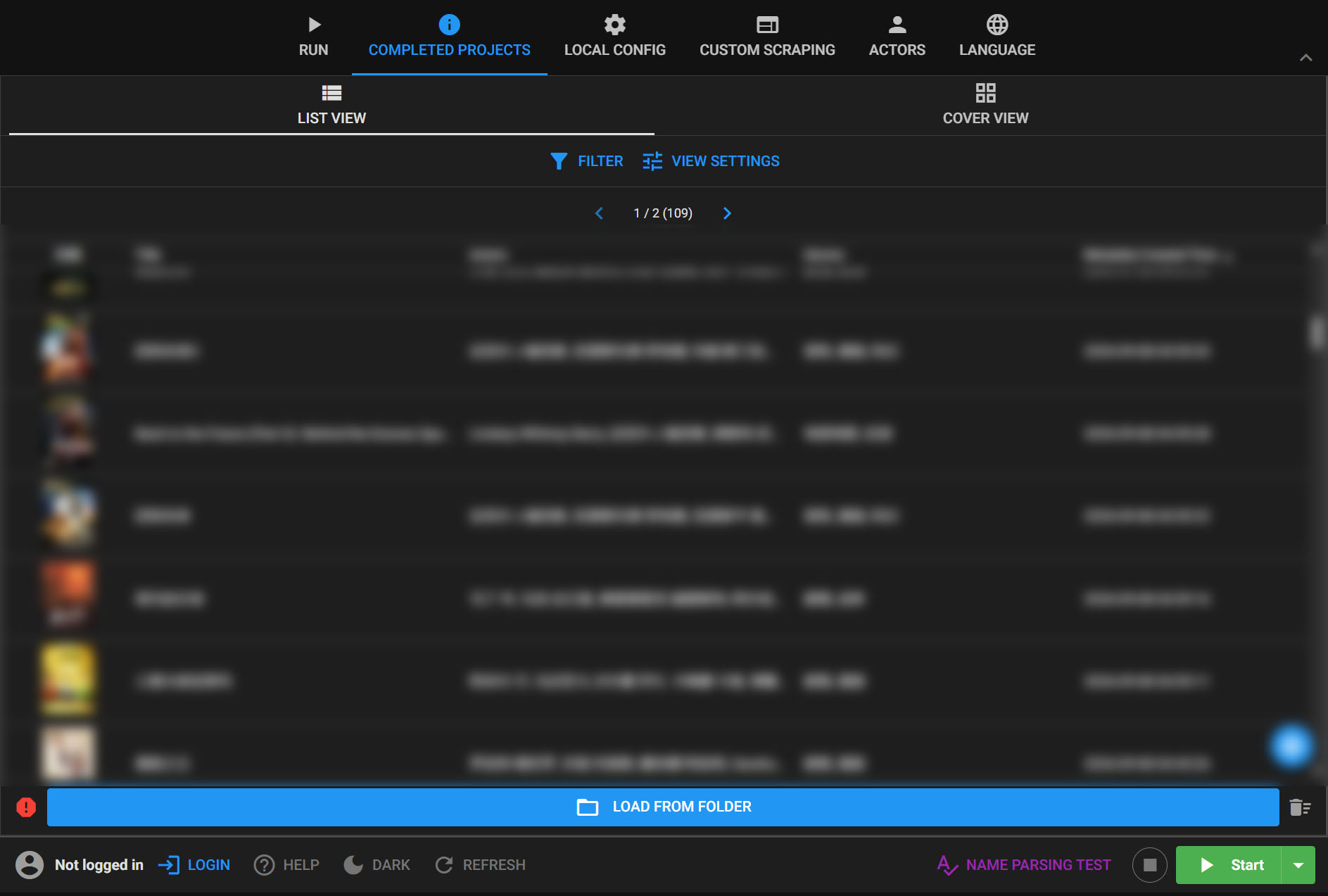
List View: Review Metadata Together
The list displays file names, titles, release dates, series, studios, directors, actors, genres, and tags. Sorting, pagination, and customizable columns help you review existing scraping results.
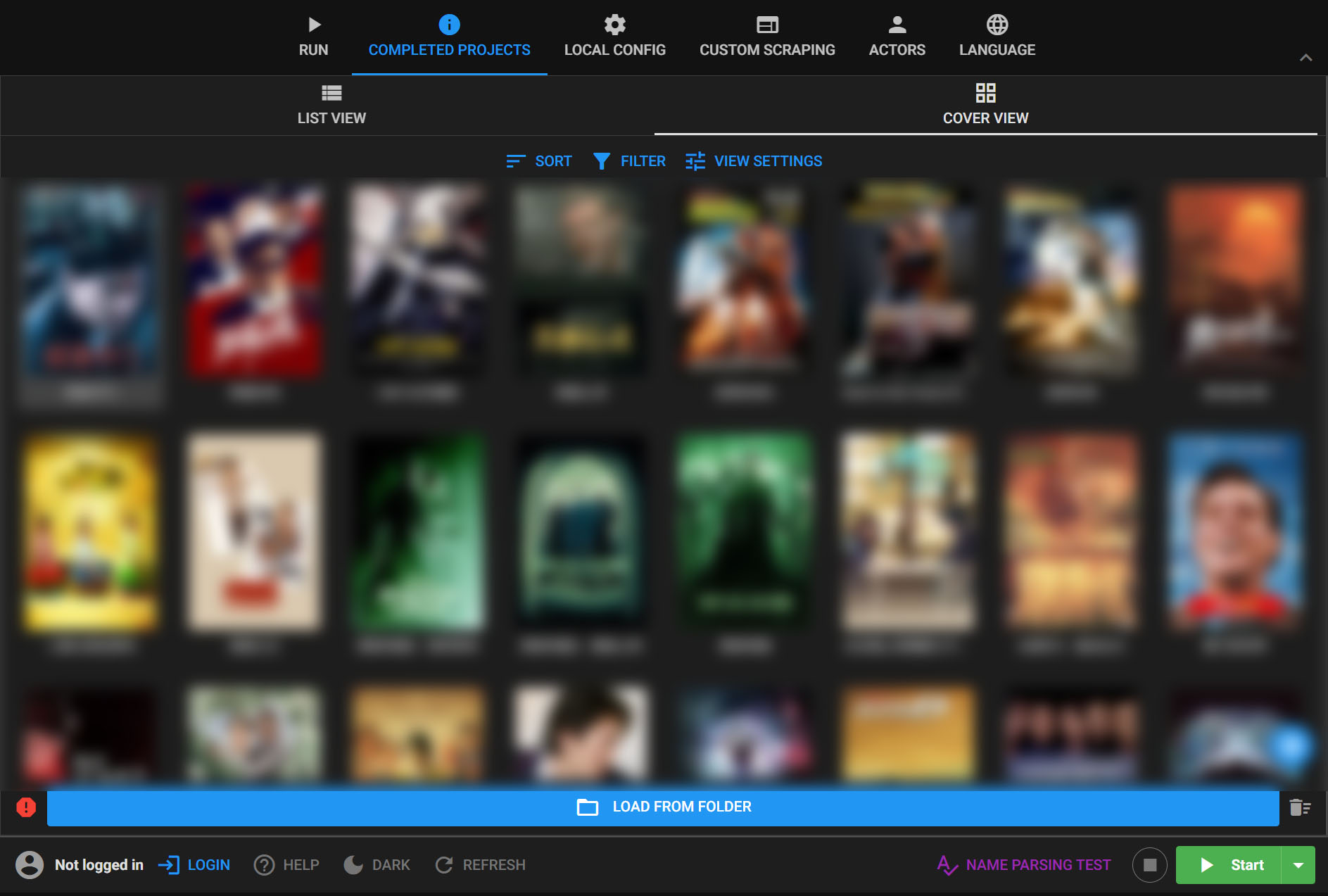
Cover View: Find Movies by Their Posters
Switch to the cover view to browse posters, titles, and key metadata. Adjust card sizes or click an item to open its details.
Search and Filter
Search by file name, title, series, studio, director, actor, genre, or tag, then narrow the results with filters and sorting. This helps you find items without opening folders individually.
No Cache Files After Scanning
No need to create a media library: scanning does not generate cache files or use additional storage space.
Review Details and Correct Information
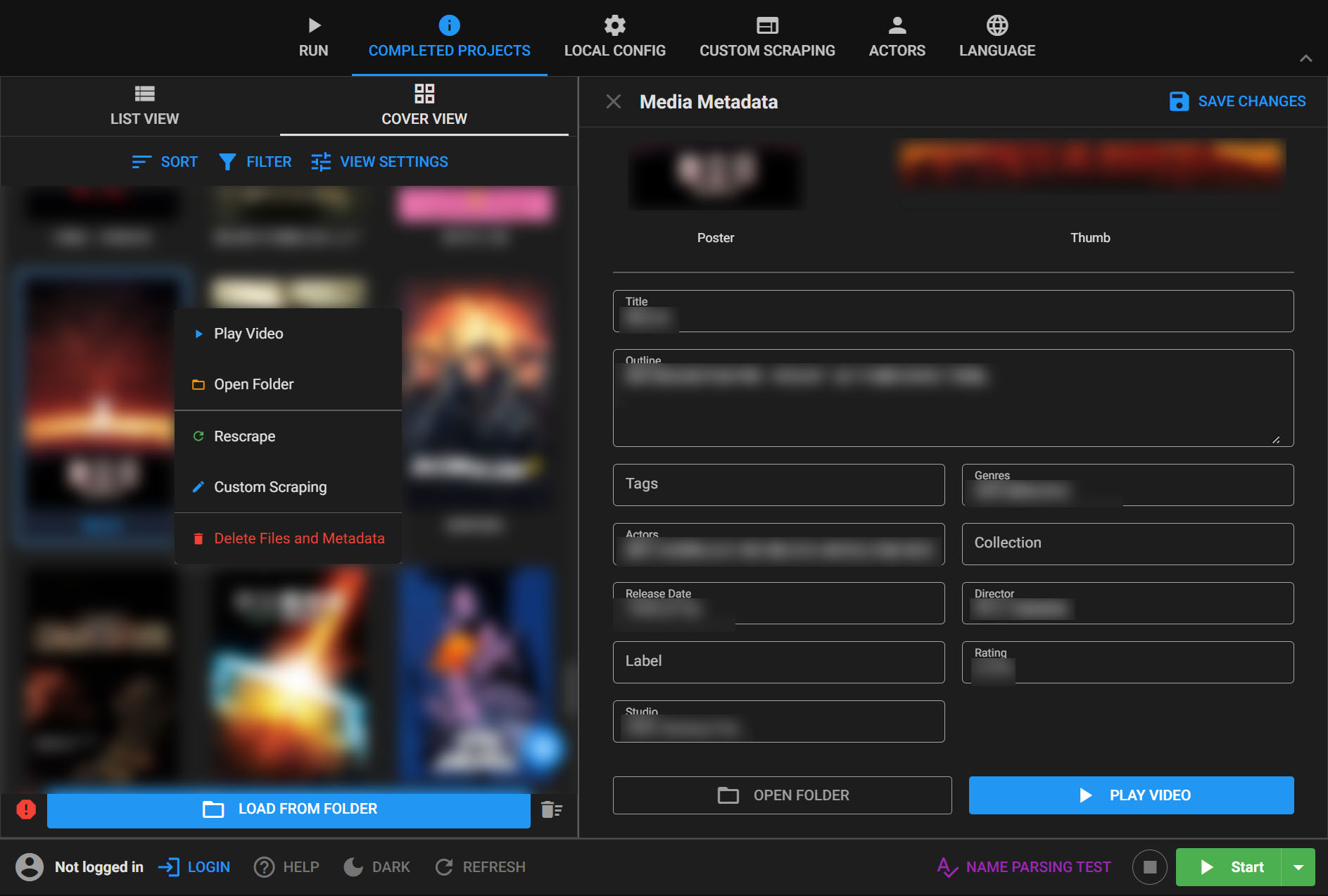
Click an item to view its poster, title, actors, genres, tags, and release date. Edit and save metadata when needed.
Right-click to Scrape Again
Right-click an item in the list or cover view to scrape it again or use custom scraping. If a movie needs a different match, custom scraping lets you change the search name before looking up and updating its metadata.
Start with a small media directory. Once its NFO metadata and artwork display correctly, open a larger collection.
You can also right-click an item to scrape it again or use custom scraping to find a new match and update its metadata.