MDC Client Setup and Docker Deployment
🍎 macOS
Allow Programs from Any Source
- Run
sudo spctl --master-disableinTerminal; the password is the user login password - Open
System Preferences-Security & Privacy-Security, then checkAny Source
🐳 Docker
New Material Design UI
Environment Variables
| Field Name | Meaning | Default |
|---|---|---|
| USER_ID | Current user ID of the host | 1000 |
| GROUP_ID | Current user group ID of the host | 1001 |
| NAME | Device name shown in the User Panel and web title | Docker-MDC |
| ACCESS_USERNAME | Docker Web access account | - |
| ACCESS_PASSWORD | Docker Web access password | - |
If both ACCESS_USERNAME and ACCESS_PASSWORD are non-empty, the Docker Web Access Lock will be enabled automatically and used as login credentials.
Volumes
| Volume | Description |
|---|---|
| /config/.mdc | Configuration file directory |
| /data | Media data directory |
| /data/output | Media data output directory |
WARNING
Soft/hard link files are not recommended inside Docker containers.
If link files must be used, make sure the host directory and container directory are exactly the same when configuring volumes.
Port
5800HTTP
📚 Detailed Tutorial
NAS System
Expand NAS system tutorial
Open Container Manager and get the mvdctop/mdc-gui-lite image.
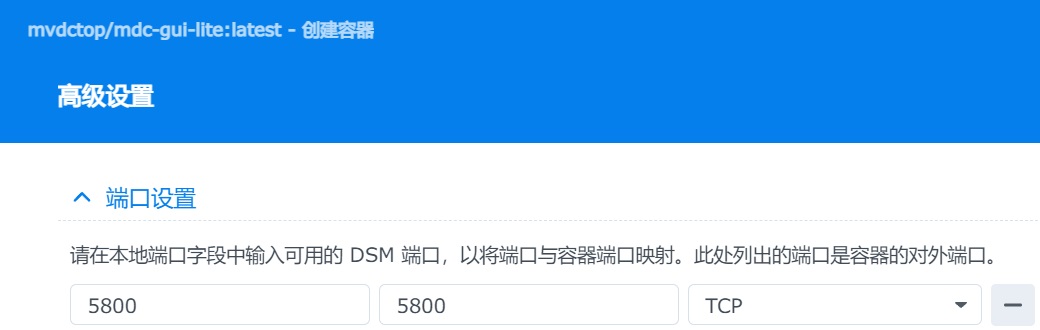
Ports
- Map HTTP port
5800
Environment Variables

| fnOS | Synology DSM | Common Linux Distribution | |
|---|---|---|---|
| USER_ID | 1000 | 1026 | 1000 |
| GROUP_ID | 1001 | 100 | 1000 |

- Click
-to remove empty environment variable values

Volumes
- Create a new folder on the host. This directory maps to the container directory
/config/.mdc(required)

- On the container page, right-click details and edit volumes

Finish Running
Open port 5800 in the browser:
text
http://192.168.1.2:5800Common Linux Distribution
Expand common Linux distribution tutorial
It is recommended to add the current user to the Docker user group first to avoid directory permission issues caused by running with sudo.
Pull Docker Image
sh
docker pull mvdctop/mdc-gui-lite
mkdir -p config data output
Place a Test Video
This command creates an empty test file. You can also use a real video file.
sh
touch ./data/Resident.Evil.2002.mp4Run the Container
shell
sh
docker run \
  --rm \
  --name mdc-gui-lite \
  -p 5800:5800 \
  -v ${PWD}/data:/data \
  -v ${PWD}/output:/data/output \
  -v ${PWD}/config:/config/.mdc \
  -e USER_ID=$(id -u) \
  -e GROUP_ID=$(id -g) \
  -e NAME=Docker-MDC \
  mvdctop/mdc-gui-lite
docker-compose
Save as docker-compose.yml in the current directory:
yml
version: '3.8'

services:
  mdc-gui-lite:
    image: mvdctop/mdc-gui-lite
    container_name: Docker-MDC-GUI-Lite
    ports:
      - "5800:5800"
    volumes:
      - ./data:/data
      - ./output:/data/output
      - ./config:/config/.mdc
    environment:
      - USER_ID=${USER_ID}
      - GROUP_ID=${GROUP_ID}
      - NAME=Docker-MDC
Run:
sh
mkdir -p config data output
export USER_ID=$(id -u)
export GROUP_ID=$(id -g)
docker-compose up
Browser Access
Open port 5800 in the browser:
text
http://192.168.1.2:5800